Docker Advanced (Two-tier-application using docker-compose)
-> Docker Volumes
-> Docker Compose (2/3 tier)
-> Multistage docker build
-> Docker push to Docker Hub
Docker volumes: Docker volumes are file systems mounted on Docker containers to preserve data generated by the running container.
df -h: To check the disk free space(-h refers to human readable form like MB,GB)

git clone https://github.com/LondheShubham153/django-todo-cicd.git: To copy the code of the application into local

ls: to list all the files/directories

cat Dockerfile: To view the content of the Dockerfile

docker build . -t django-todo: To build an image with tag django-todo

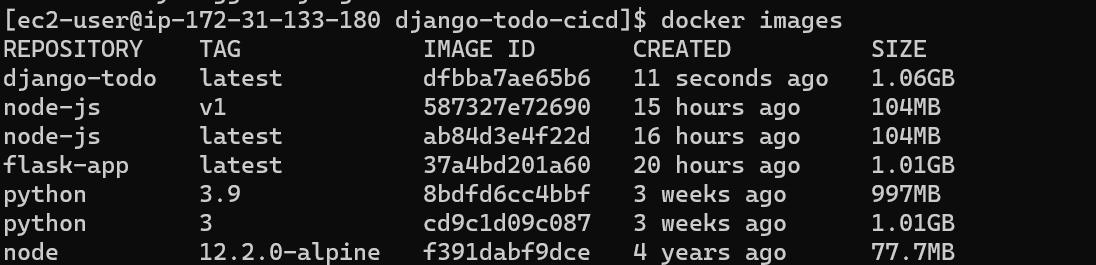
docker images: To view all the images(django-todo image has been created)
docker run -d -p 8000:8000 django-todo -> To run the container from the image

After that edit the security inbound rules of the ec2 instance in AWS(add port 8000 from anywhere):

copy the IP address and attach port 8000
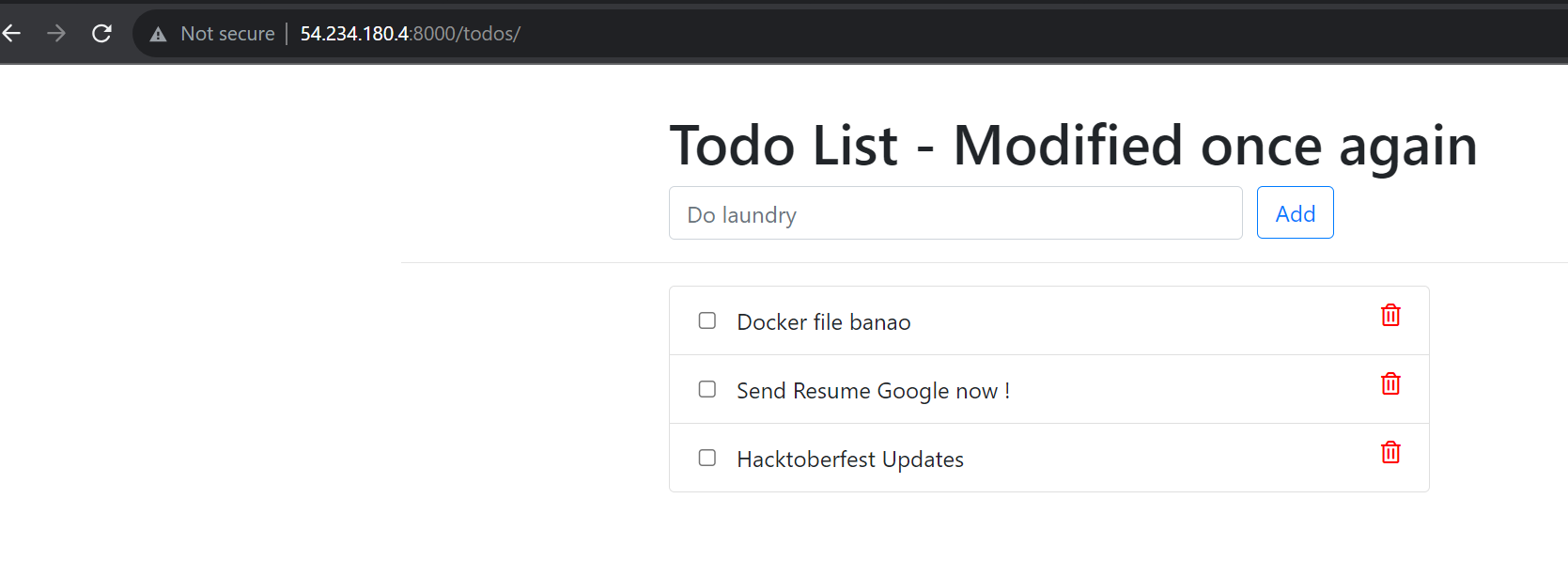
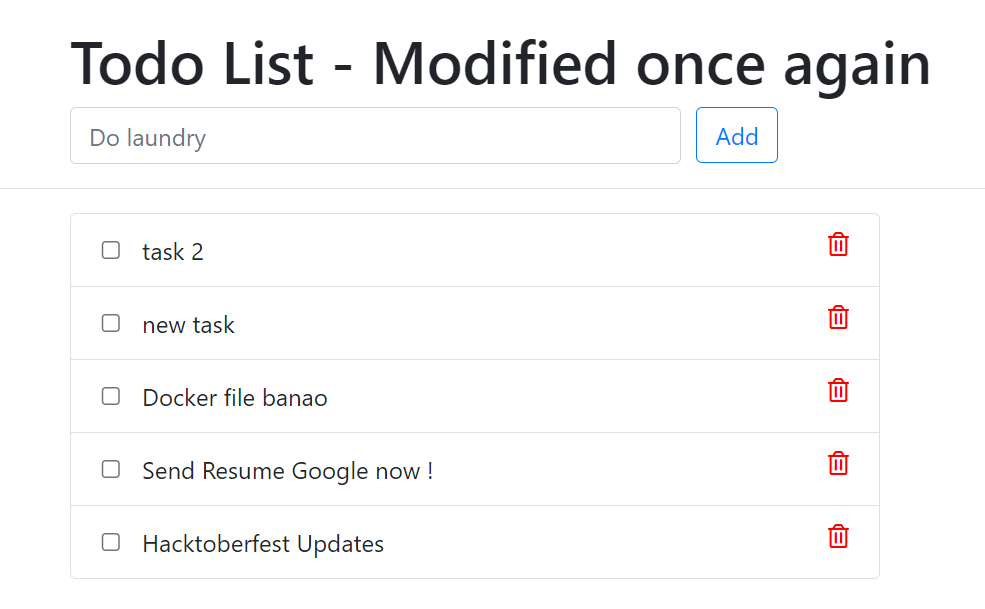
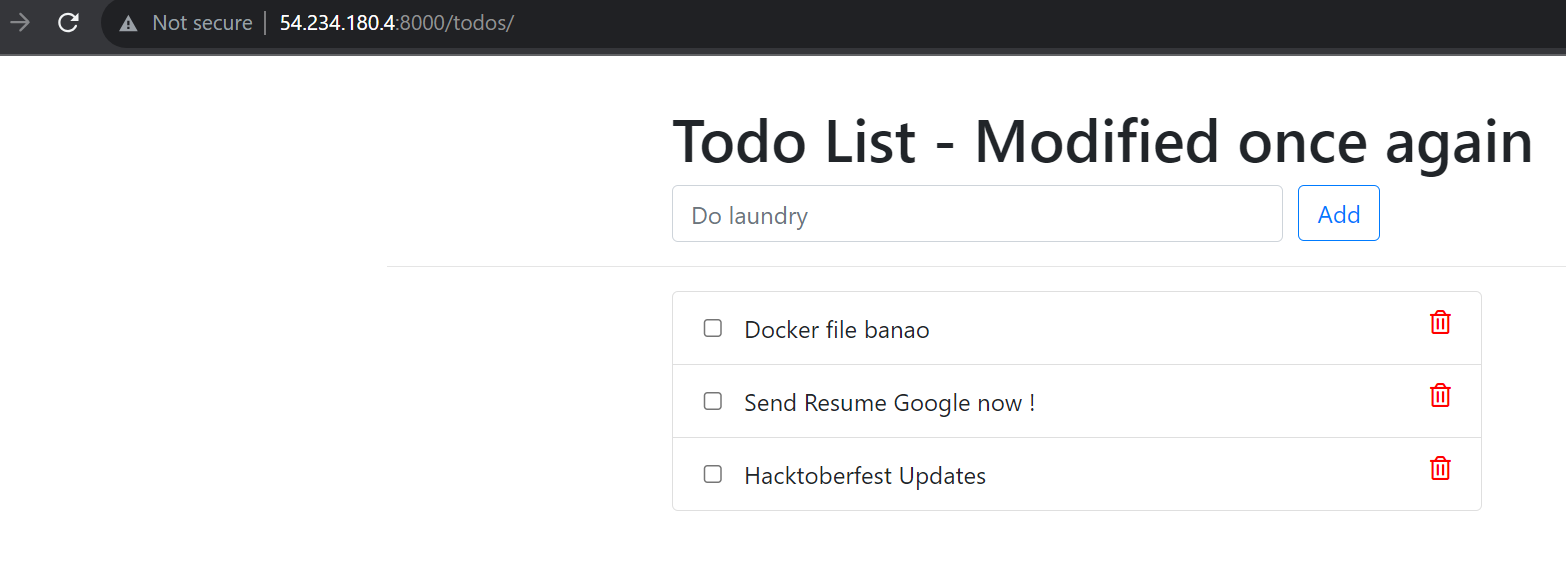
NOTE: Added task 2 and new task(as this should be there even when the container is deleted but it won't as the docker volume isn't attached to store the data)
docker ps: To view the running container
docker kill 00c860d874cf: To kill the container
docker rm 00c860d874cf: To remove the stopped container

docker run -d -p 8000:8000 django-todo:latest ->to make a new container with django-todo image

the data new task and task 2 have been deleted(as no volume has been attached to container)
docker volume create --name django-todo-volume --opt type=none --opt device=/home/ ec2-user/volumes/django-todo-volume --opt o=bind
-> To create a volume with name django-todo-volume having type none and location /home/ ec2-user/volumes/django-todo-volume
docker volume ls: To view all the volume

docker ps: To view all the running container
docker kill 0fc5a3091386: to stop the container
docker rm 0fc5a3091386: to remove the stopped container
NOTE: (Now, no container is running and we can make a new container and attach the volume with it to persist the data)

docker run -d -p 8000:8000 --mount source=django-todo-volume,target=/data django-todo
to create the container in detached mode while publishing the host port 8000 with container port 8000 and mounting the volume django-todo-volume to the container directory /data

-> NOTE: Now, all the data in the container will also be stored in volume in local

docker exec -it 7d893b520963 bash: to interact with docker container using bash
touch secret_file.txt: To create a file
echo "Hello" > secret.txt: To print the line in the file

ls:To list all the files(secret_file.txt created in container is also present in the local file)

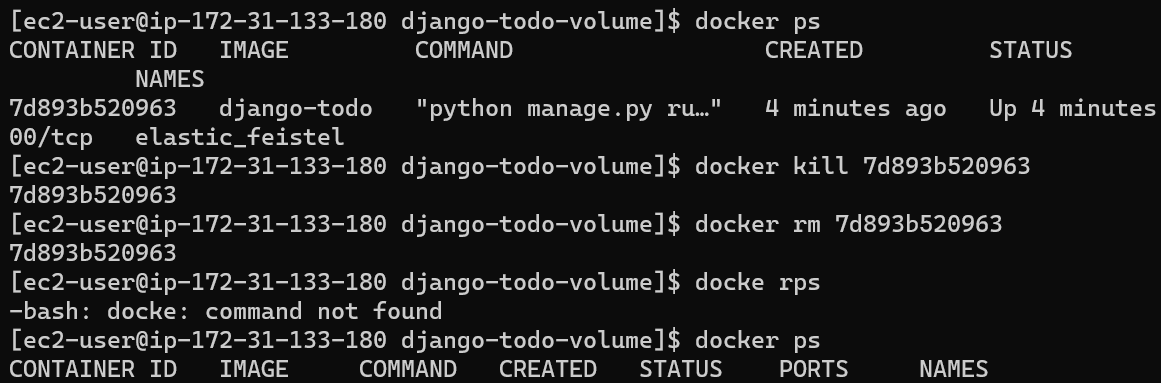
docker kill 7d893b520963: to stop the container
docker rm 7d893b520963: to remove the stopped container
docker ps: To view the running container
docker run -d -p 8000:8000 --mount source=django-todo-volume,target=/data django-todo :
To create a new container with the same mounted volume

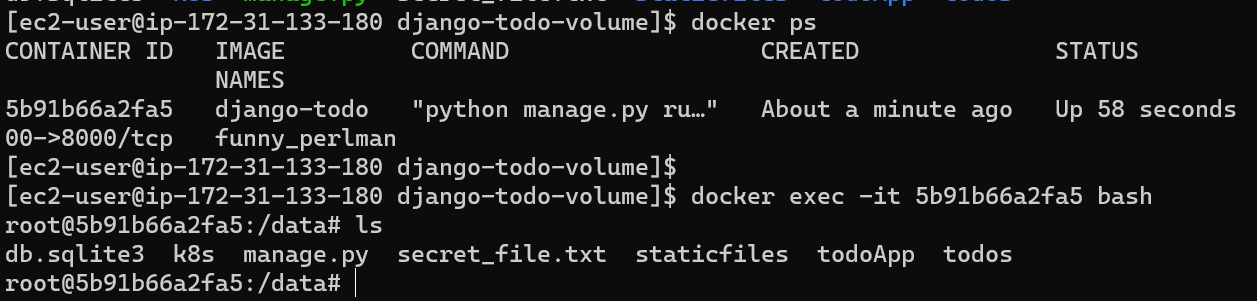
docker ps: To view all the running container
docker exec -it 5b91b66a2fa5 bash: To interact with the container using bash
ls: To list all the files ( secret_file.txt is still present in the volume with the new container also)
Two-tier application with docker-compose
vim app.py: TO create a python file (add code from the repository)

mkdir templates: To make a directory
vim index.html: To create a html file

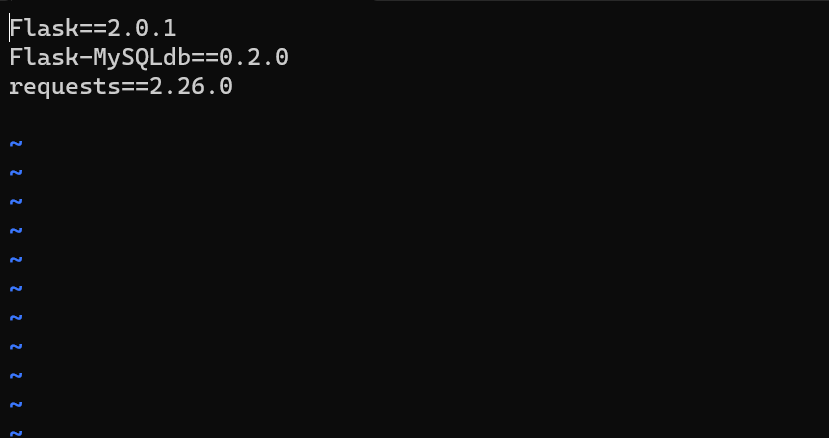
vim requirements.txt: To make a .txt file (consisting of libraries)
vim Dockerfile: To create a Dockerfile

docker build . -t two_tier: To build image
docker run -d -p 5000:5000 two_tier: To make container from image
Error 1: MySQLdb.OperationalError: (2002, "Can't connect to local server through socket '/run/mysqld/mysqld.sock' (2)")
-> As there isn't any database connected.

vim docker-compose.yml : To create a docker-compose file

sudo apt install docker-compose: To install docker-compose
docker-compose up -d: to run the docker-compose file
Resolved the error as MySQL database has been setup and connected.
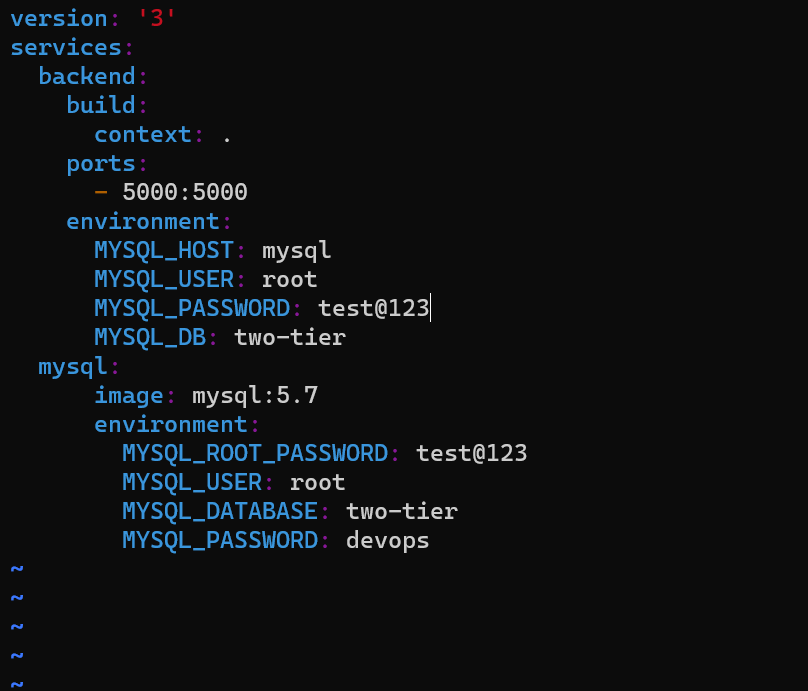
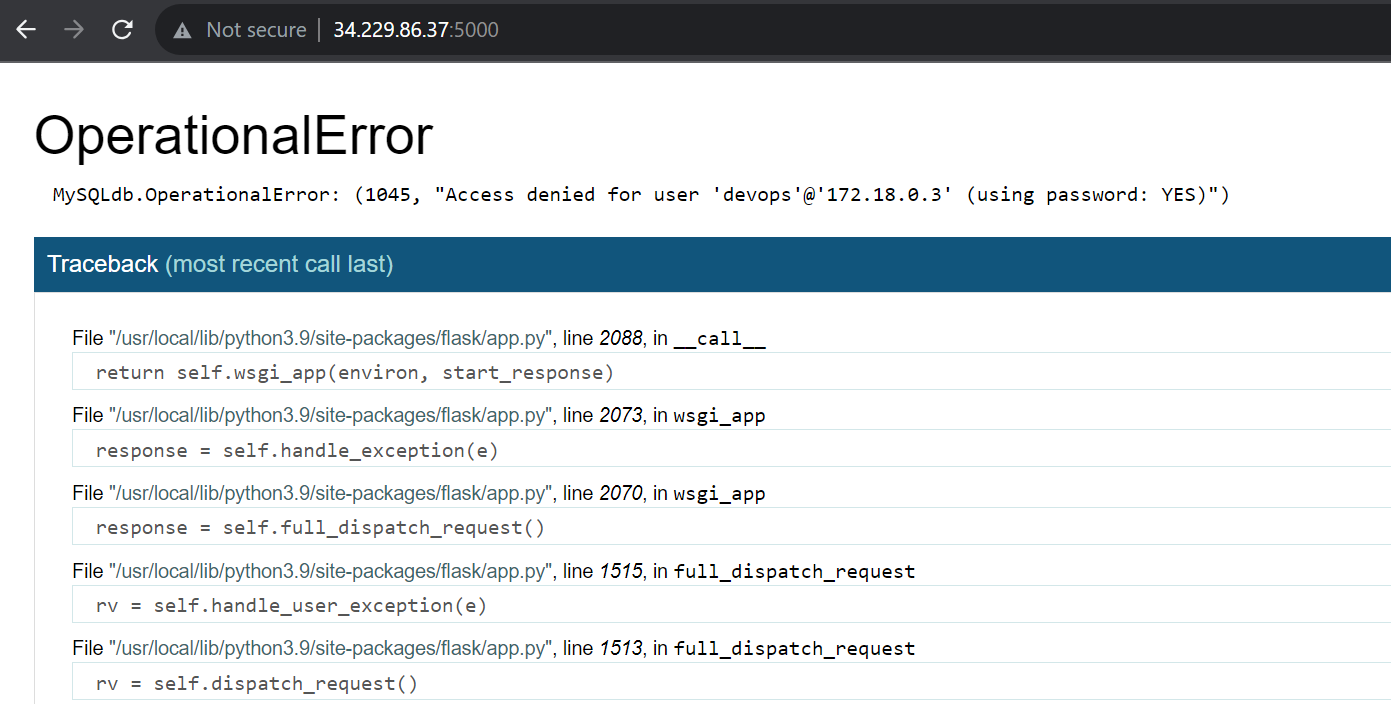
Error2: MySQLdb.OperationalError: (1045, "Access denied for user 'devops'@'172.18.0.3' (using password: YES)")
change the MYSQL_USER: root, MYSQL_PASSWORD: test@123
Error 3: MySQLdb.OperationalError: (1049, "Unknown database 'two-tier'")

Database name can't be two-tier as '-' isn't allowed instead use two_tier.
-> Attaching volume to MySQL by editing docker-compose.yml
vim messages.sql: to create SQL script to create table
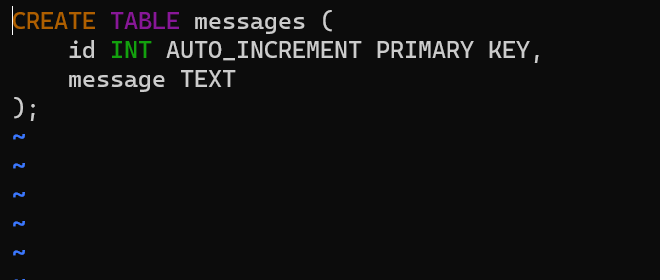
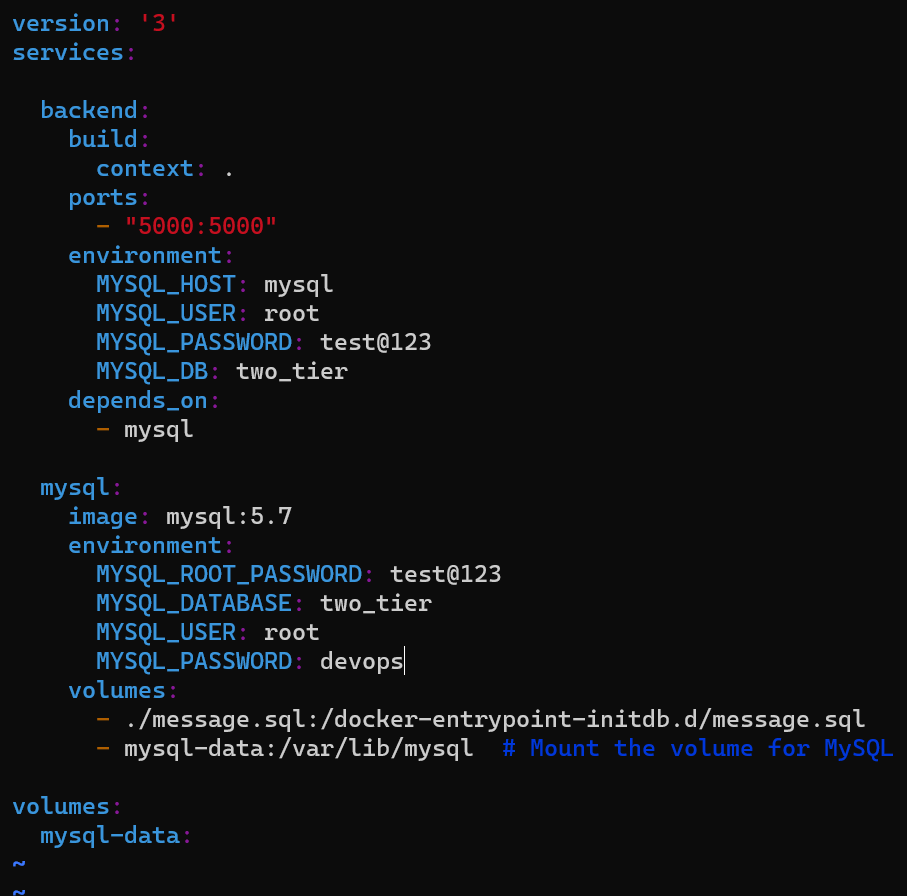
docker-compose up -d: running the docker-compose in detached mode/background


Multi-stage docker build or How to reduce the size of an image
vim app.py: To create the Python file(copy code from the repository


vim Dockerfile: To create a Dockerfile

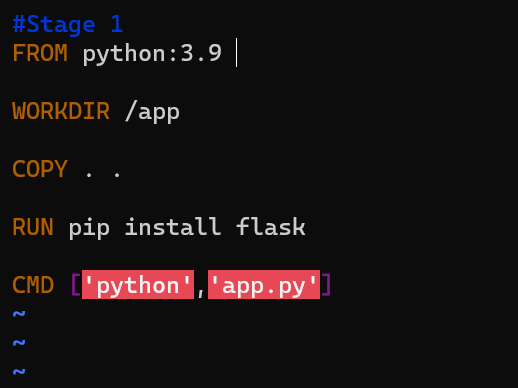
docker build . -t normal-flask-app: To build an image of the application

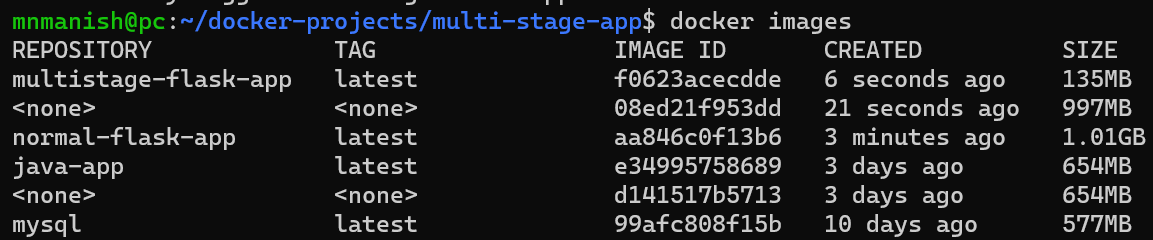
docker images: To view all the images(size of normal-flask-app is 1.01GB)

vim Dockerfile: To edit the file
->AS big-stage (giving name)
->FROM python:3.9-slimsbullseye (smaller image taken )
->Didn't have taken the smaller image on stage-1 as it might cause some time for the package to not work.
->COPY --from=nig-stage /app /app (from stage 1 copied the data stored in /app directory to stage 2 /app directory)
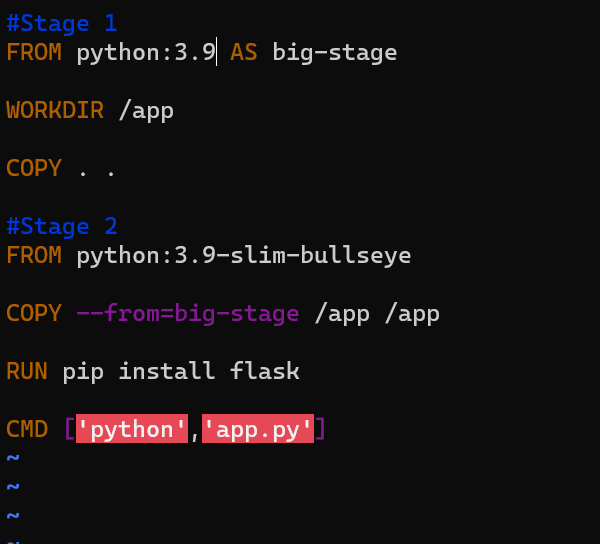
docker build . -multi-stage-flask-app: To build an image

docker images: To view all the images(multi-stage-flask-app size has been reduced to 135MB)
Docker push to Docker Hub
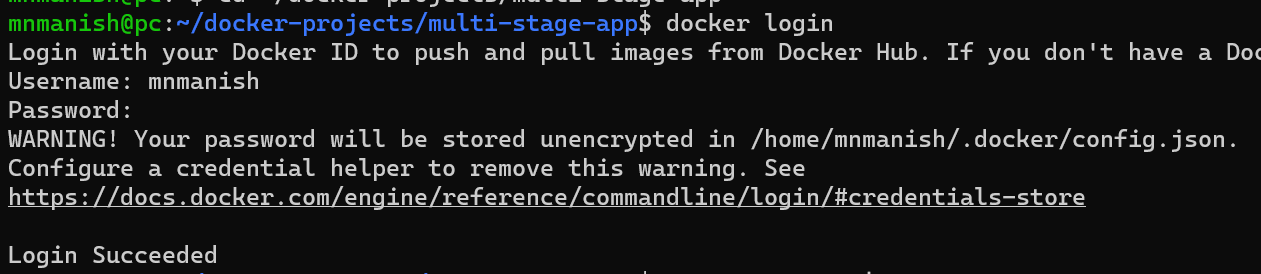
docker login: To login into the remote DockerHub using the command line

Error:Docker-credential-desktop.exe executable file not found in $PATH using wsl2
->If encountered this above error:
In ~/.docker/config.json change credsStore to credStore

change credsStore to credStore.
cd ~: To go to home directory
vim ~/.docker/config.json : To edit the file

docker login: To login into DockerHub through command line
docker image tag multi-flask-app mnmanish/multi-flask-app: To tag the image with the username of DockerHub

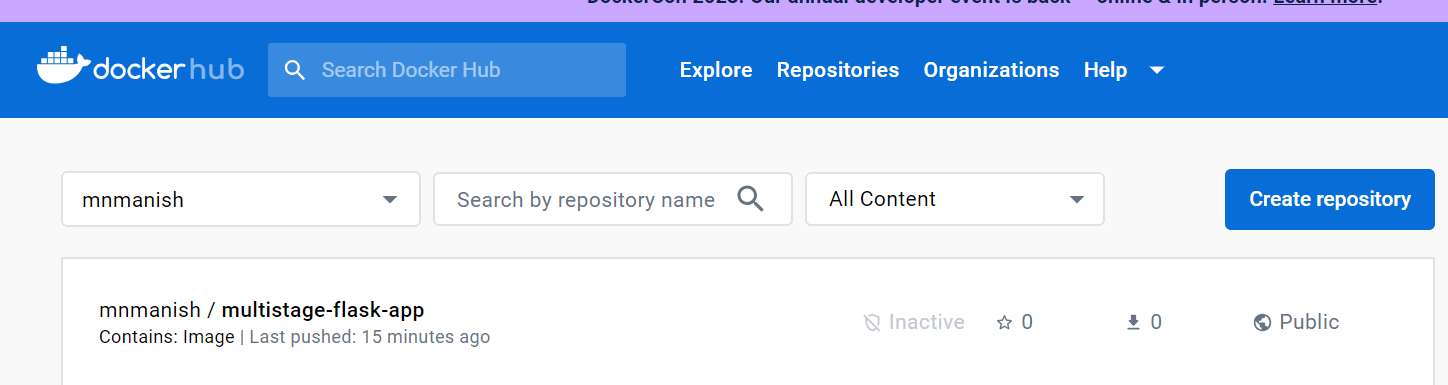
docker push mnmanish/multi-stage-flask-app: to push the image to a remote repository in DockerHub
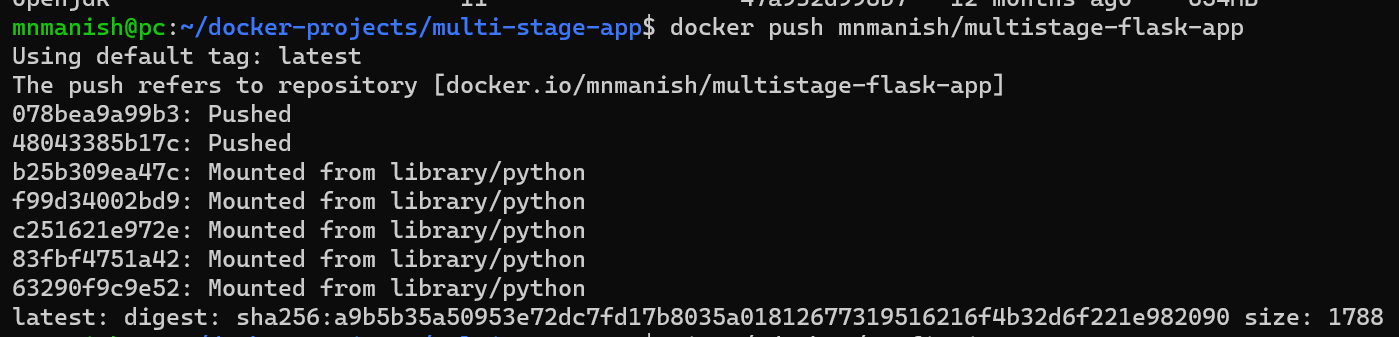
Image has been pushed to DockerHub: