GIT & GitHub Fundamentals

GIT (Global Information Tracker): Git is a version-controlling system that helps us to track the changes in any file.
git init: to initialize the git and track the files
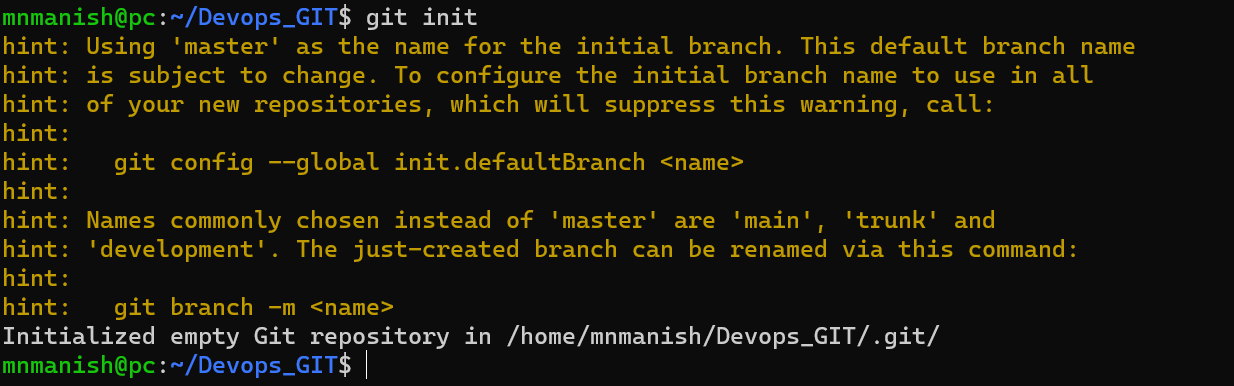
NOTE: After using git init command Devops_batch_4 becomes the root folder/repository
git status: The git status command is used to show the status of the git repository and staging area.
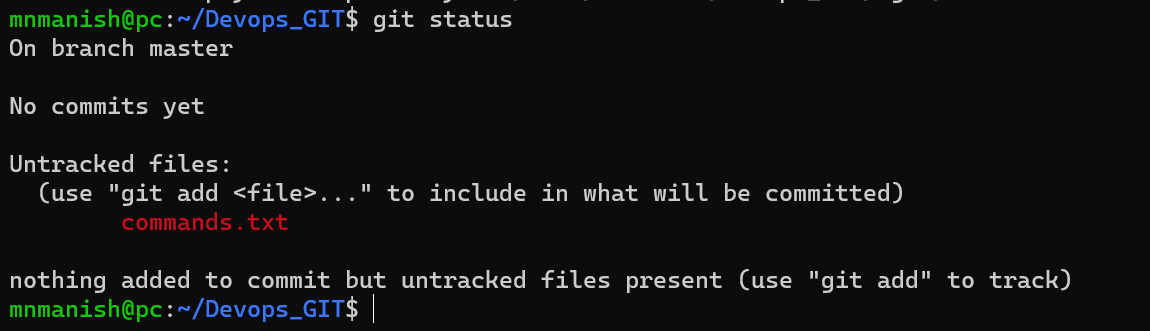
NOTE: Red color is equal to untracked files.
git add: to add the files to the staging area.
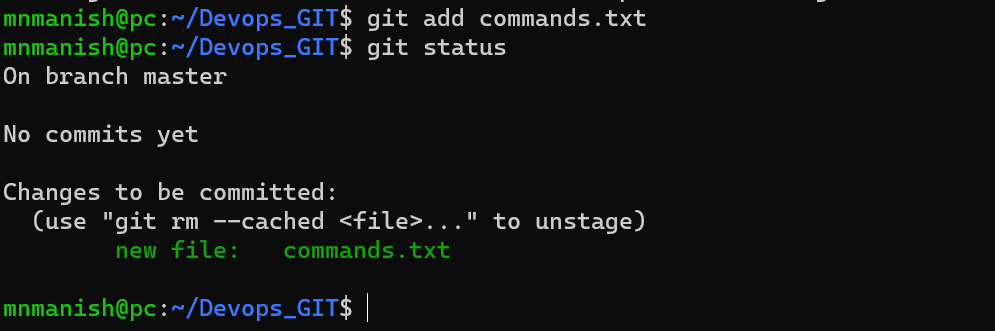
NOTE : The green color is equal to the files that are staged.
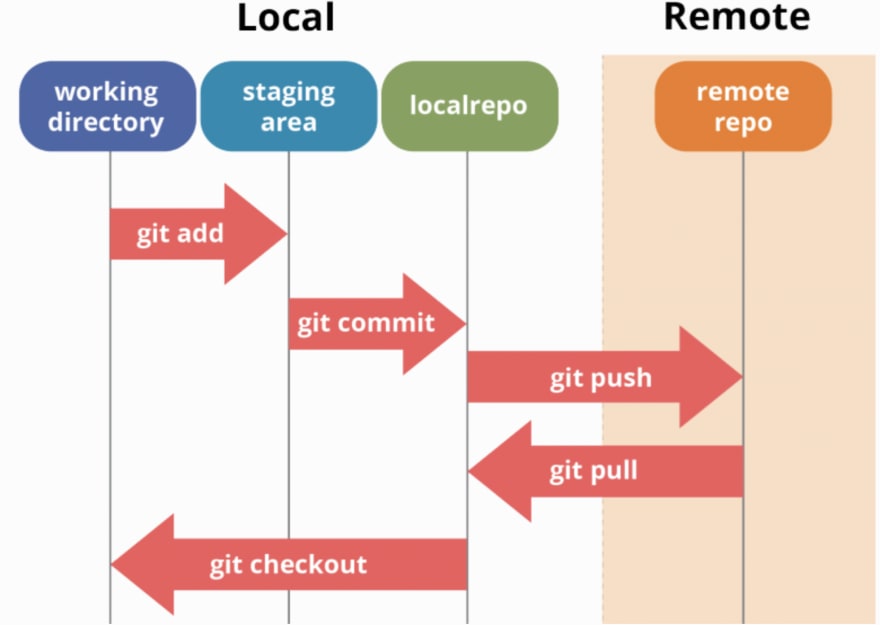
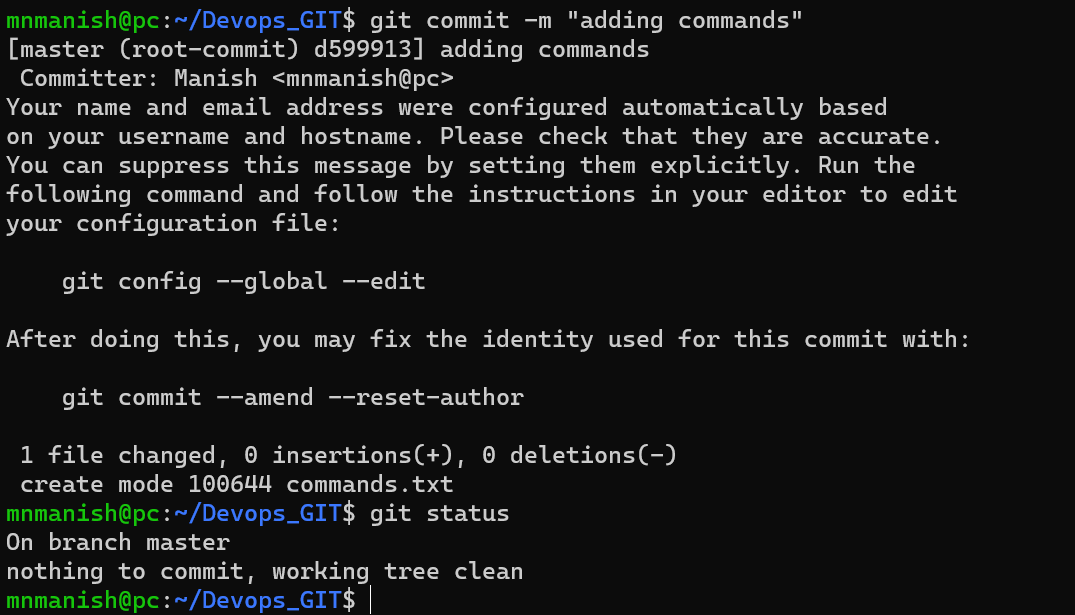
git commit -m "adding commands": to commit the changes and track the files with a message
rm commands.txt : to remove the file commands.txt

git status: to check the status of the file (deleted: commands.txt)
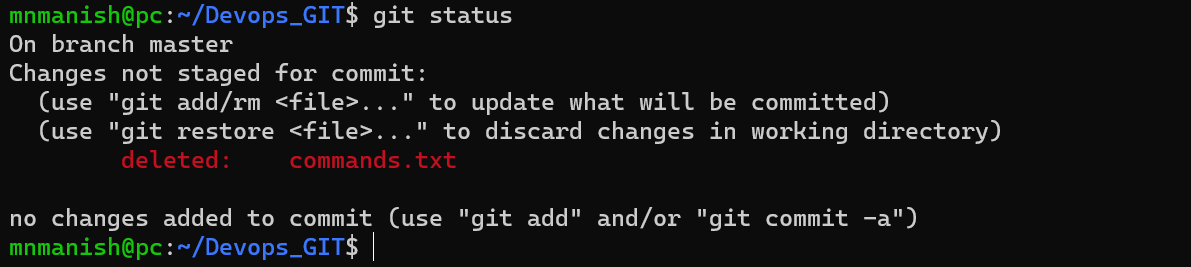
git restore: to restore the deleted files in the working directory

NOTE: commands.txt is restored as git has the version history of the file commands.txt
git log: to view the logs
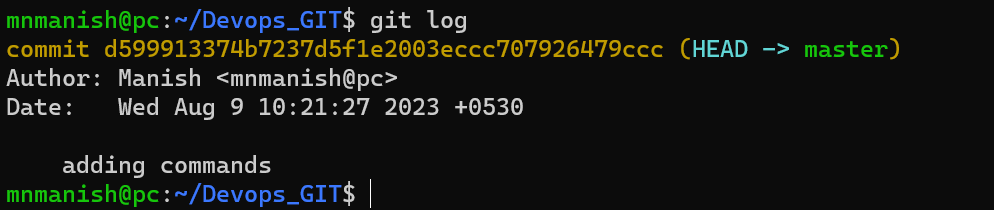
NOTE :
commit d599913374b7237d5f1e2003eccc707926479ccc : it is the version (hash key) used to commit
Author: Manish mnmanish@pc (the user who committed the changes
Date: Wed Aug 9 10:21:27 2023 +0530 (committed changes on this date)
adding commands: message while committing the file
ls -l : show all the information except for the version of the file

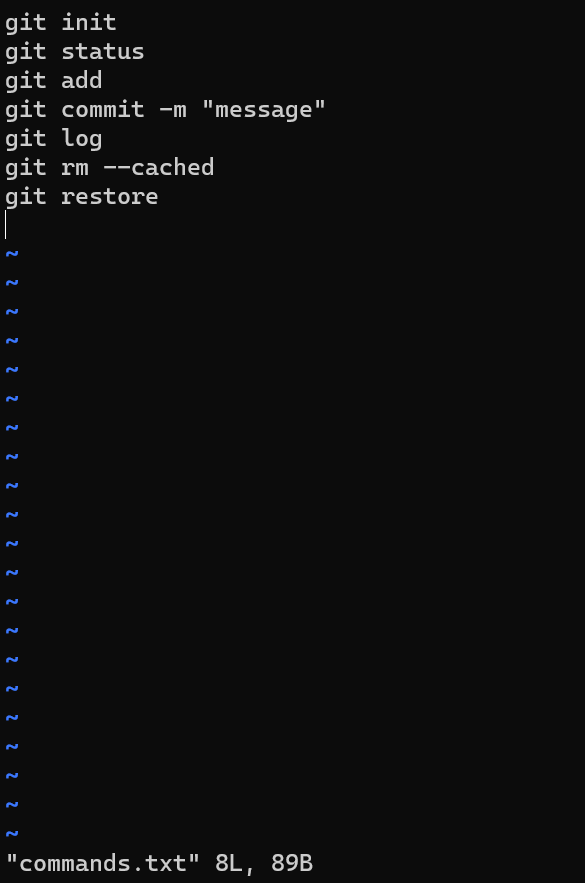
vim commands.txt : edit the commands.txt and add commands
git status : to check the status of the file
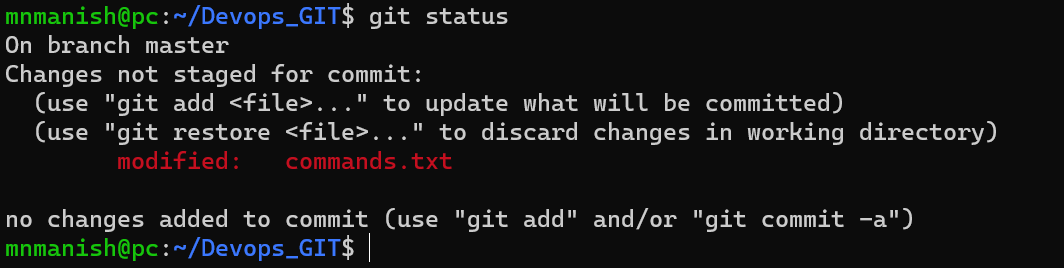
NOTE:
modified: commands.txt (as we have made changes in the commands.txt)
red color commands.txt as it is untracked changes
git add: will add the files from untracked to the staging area.
green color as commands.txt is staged
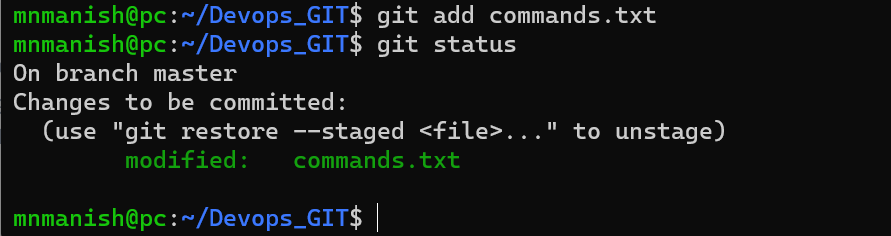
git commit -m "added new commands": commit the file commands.txt from staging to tracked files.
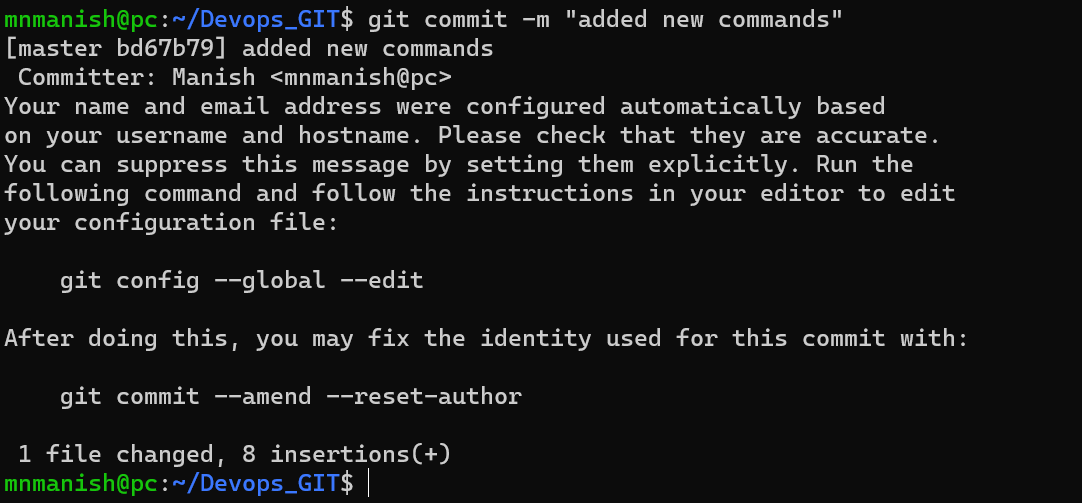
git status: nothing to commit as all the files are tracked.

git log: to check the logs
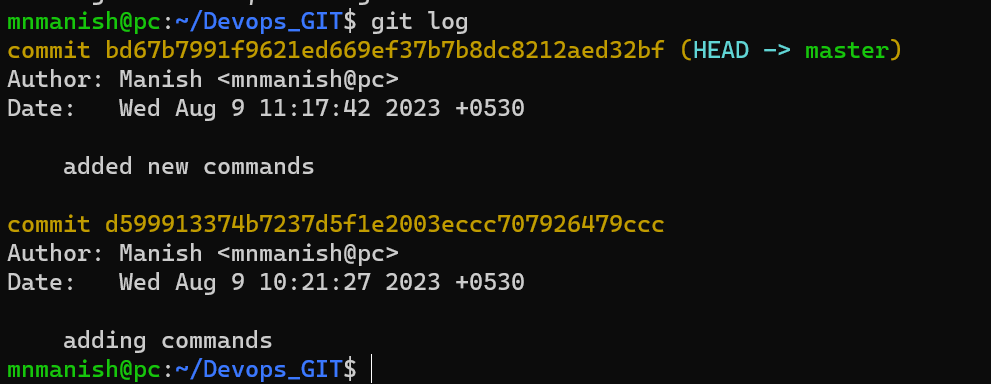
NOTE
commit d599913374b7237d5f1e2003eccc707926479ccc (older version)
message: adding commands
commit bd67b7991f9621ed669ef37b7b8dc8212aed32bf (HEAD -> master)(latest version)
HEAD -> master { by default HEAD stay on latest version}
message : added new commands
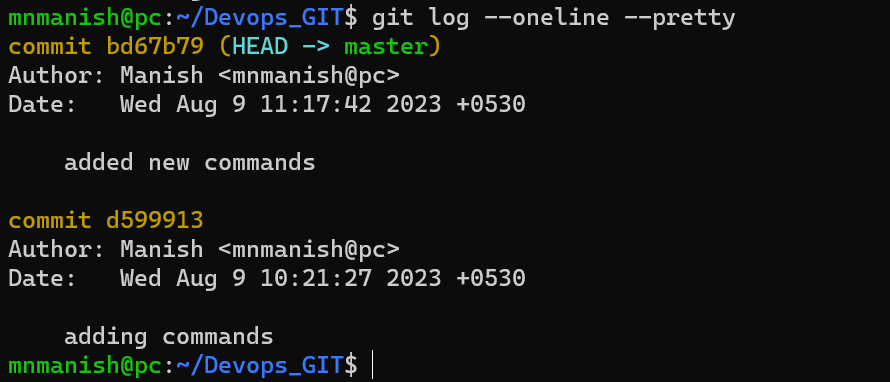
git log --oneline: to view the short version only

git log --oneline --pretty: to view the short version with all the other information
git config --global user.name "username": to configure the github username

git conifg --global user.email "email": to configure the github email

vim commands.txt : to enter other commands into commands.txt
git status: to check the status of the file
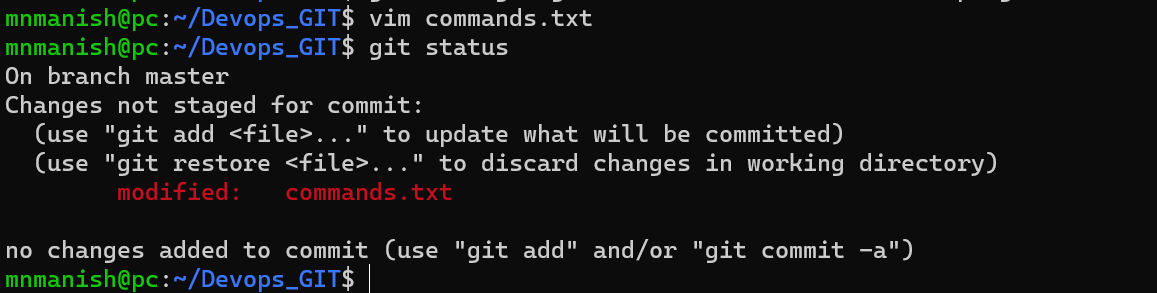
red color: unstaged modified file command.txt

git add: to stage the modified file commands.txt
git commit -m "added even more commands": to track the staged file commands.txt
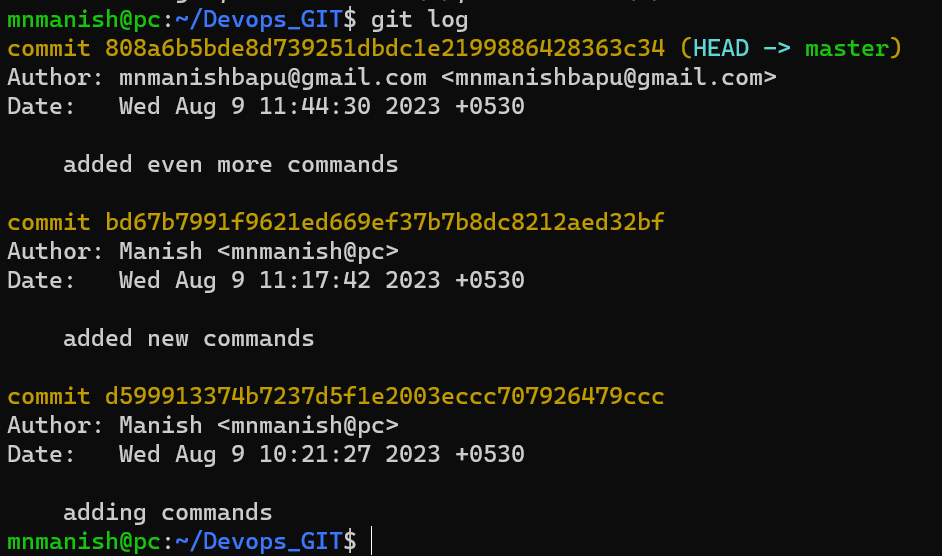
git log: to check the logs
Author:mnmanishbapu@gmail.com mnmanishbapu@gmail.com (as mention in the command git config --global)
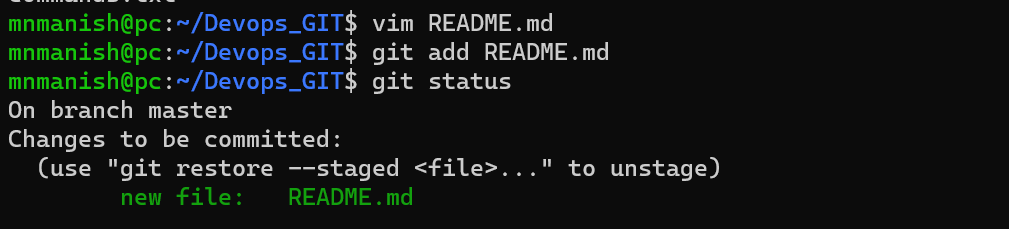
vim README.md: create a README.md file which shows information about the project.
git add README.md: to add the file to staging
git status: to check the status of the file staged in git add
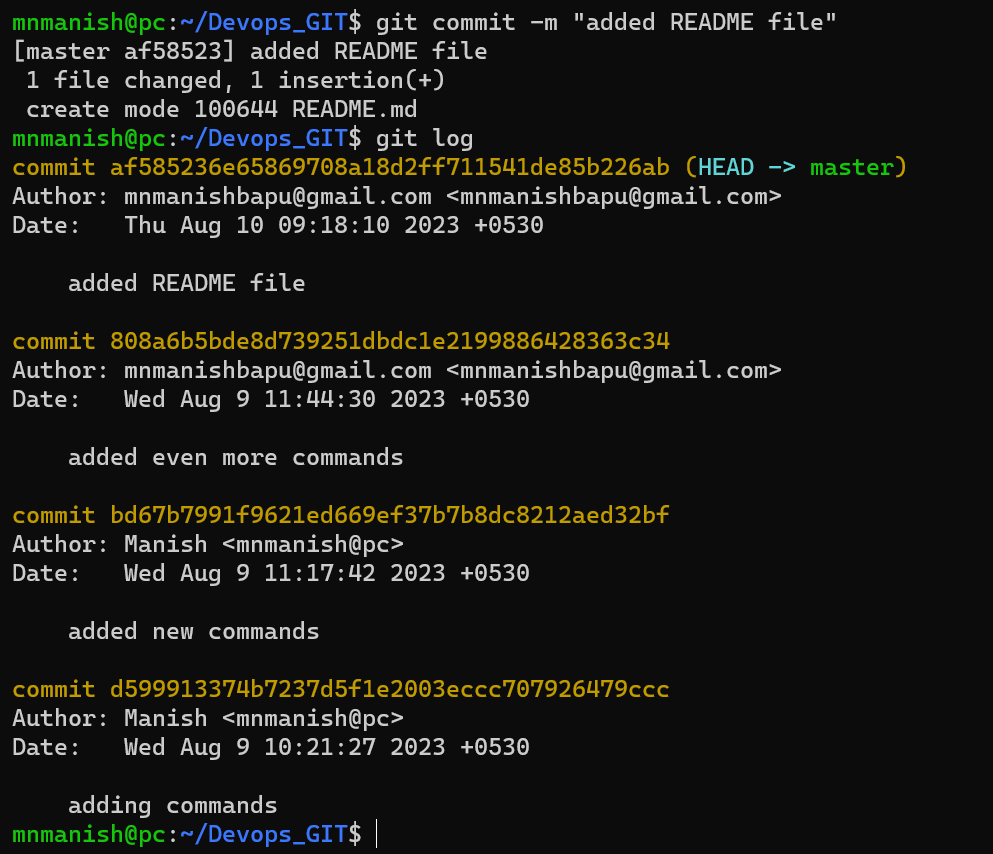
git commit -m "added readme file": to commit the file from staging to the version control system
git log: to show the logs as added README file
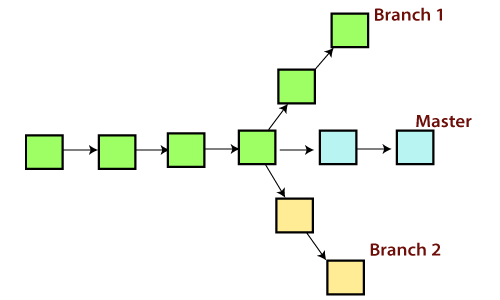
GIT Branch: In Git, a branch is a new/separate version of the main repository. Let's say you have a large project, and you need to update the design on it.
git checkout -b dev: to create and switch to a new branch dev
vim commands.txt: to edit the commands.txt in the dev branch

git status: to check the status of the unstaged file
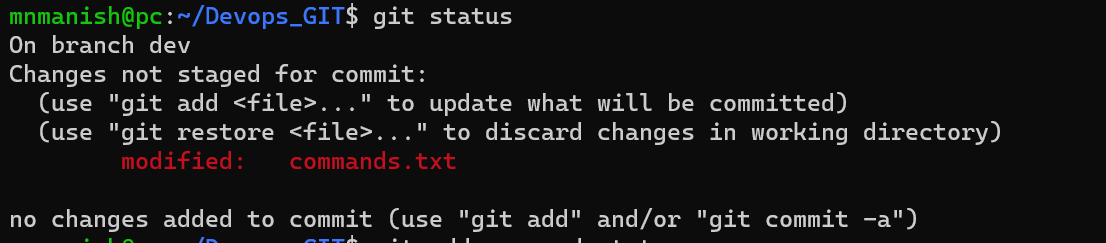
git add commands.txt: to stage the file commands.txt
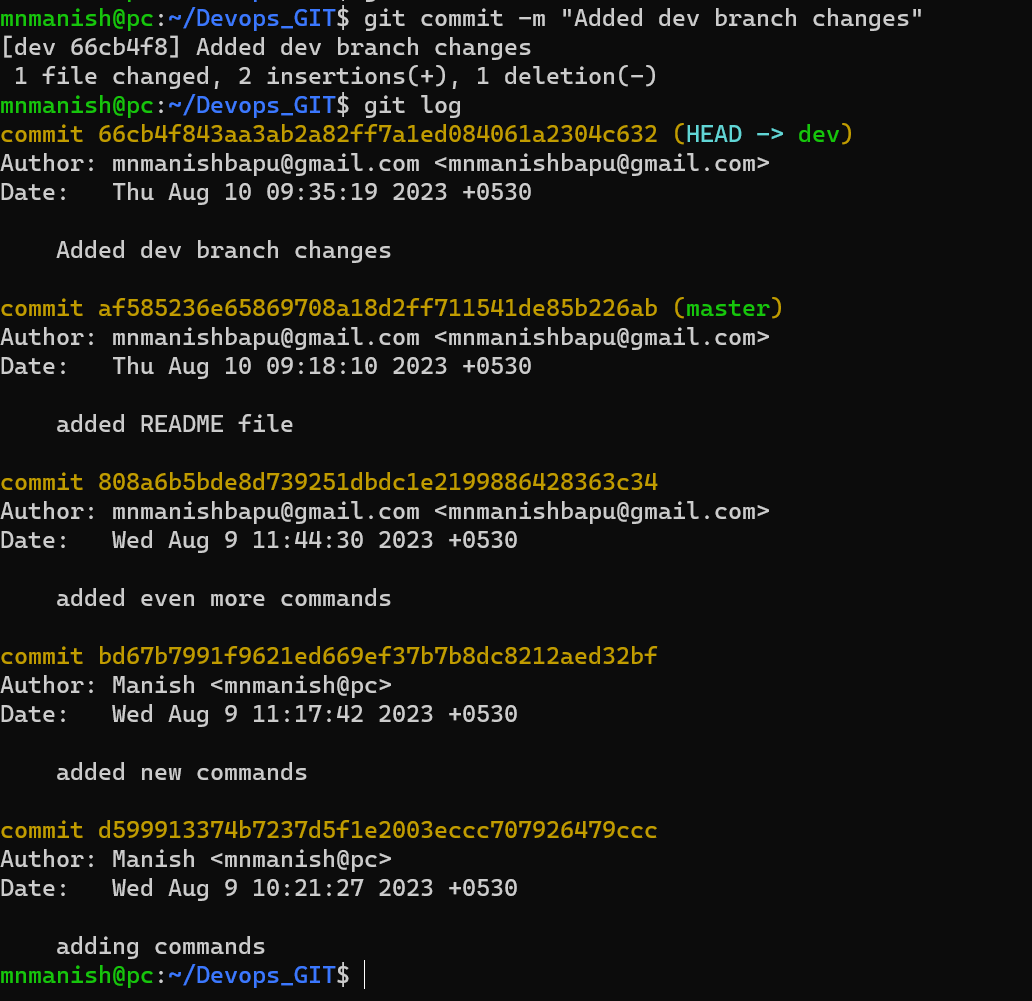
git commit -m " Added commands in dev branch": to commit the staged file in the dev branch
git log: to check the log as the HEAD is on the dev branch
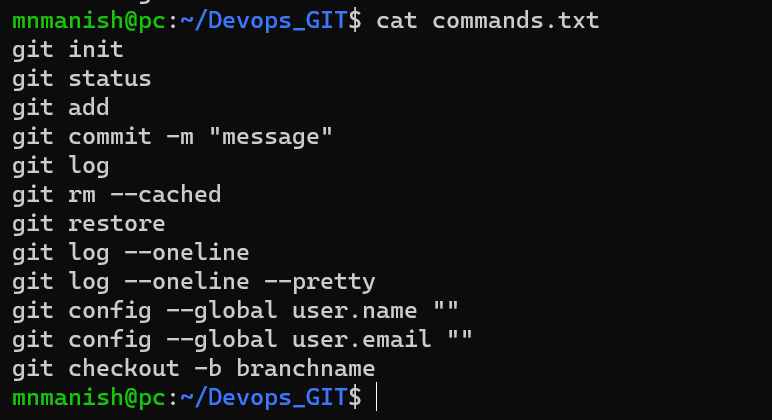
cat commands.txt: to show the data in file commands.txt in the dev branch (last command is git checkout -b branchname)
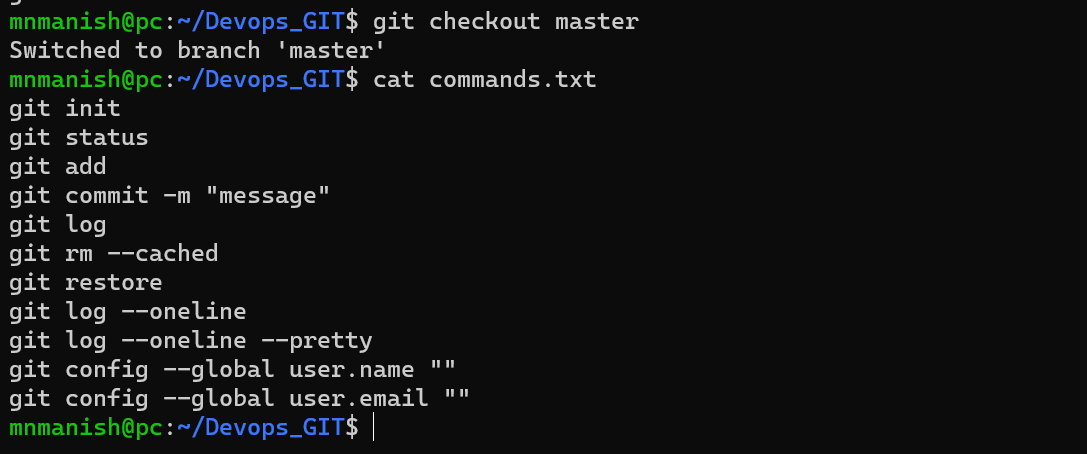
git checkout master: to switch to branch master (-b) is used while creating a new branch
cat commands.txt: to show the data in commands.txt in the master branch (master branch has last command git config --global user.email "")
git branch: to know the branches(green color branch is current branch)
How to create a public repository in GitHub?
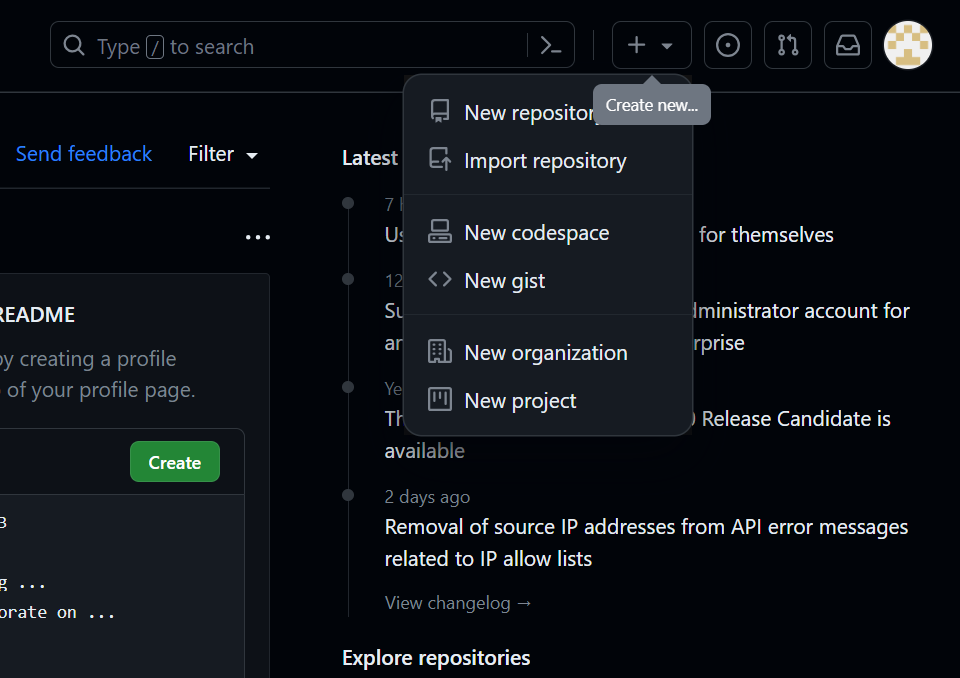
-> Click on + and then the new repository
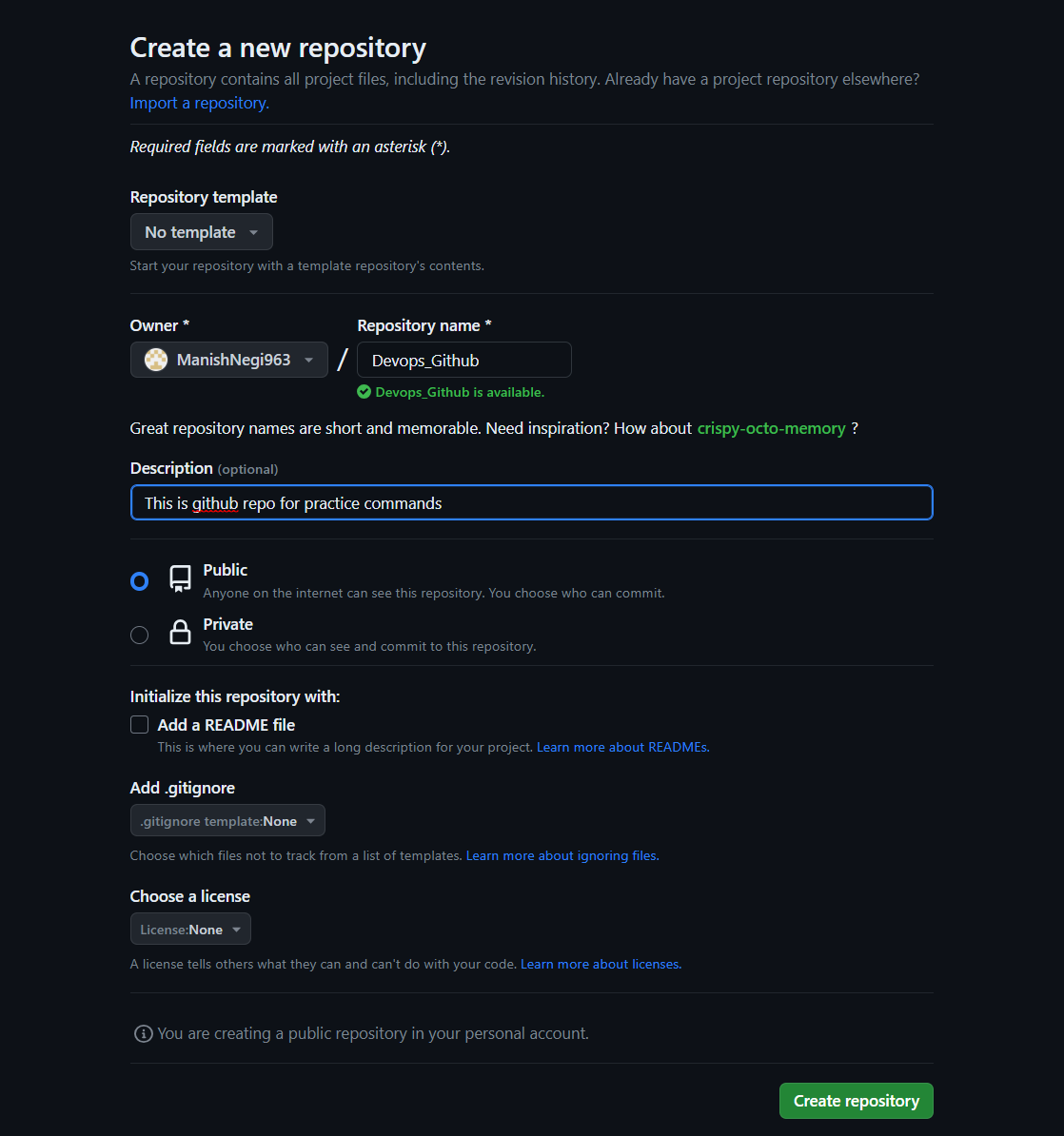
-> Add repository name and keep the profile public
NOTE: The command which in the background to create a root repository(Devops_Github) is git init.
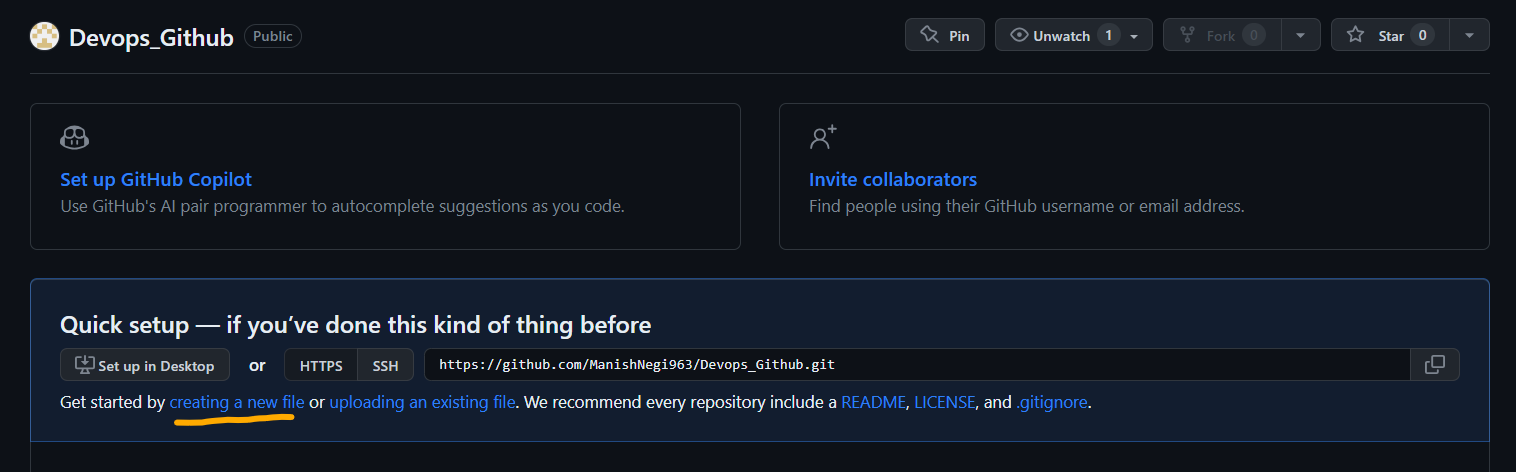
-> Click on create a new file: to add a file in Devops_Github

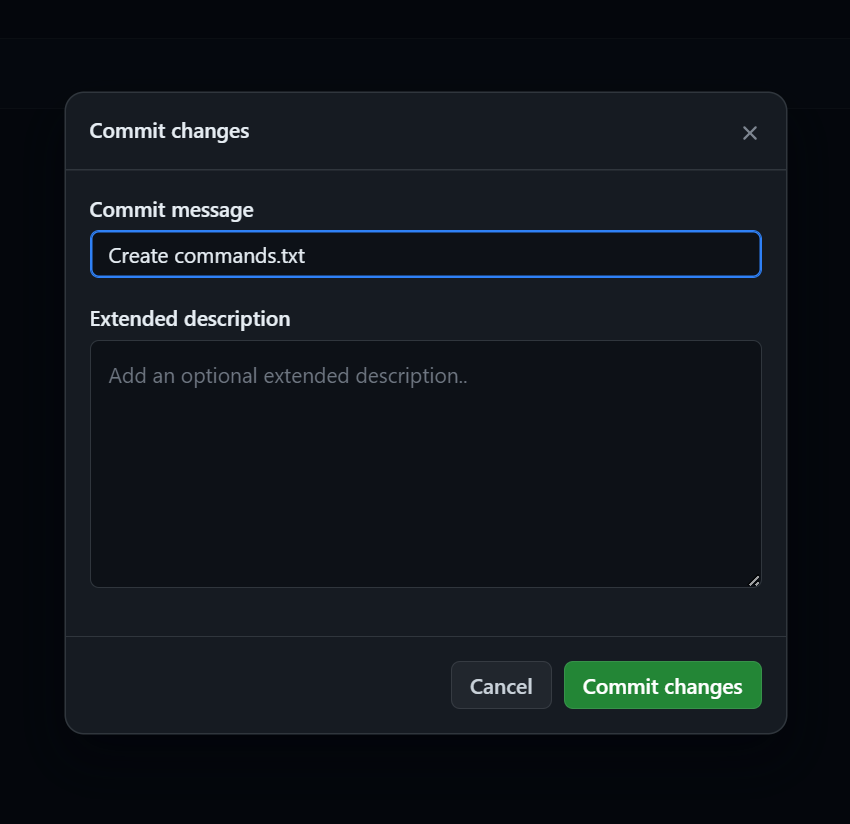
-> Enter name commands.txt after Devops_Github/commands.txt (In background git add command)
-> Click on commit changes and enter commit message( in background git commit -m "message" command)
NOTE:
Master: local root
Main: GitHub root
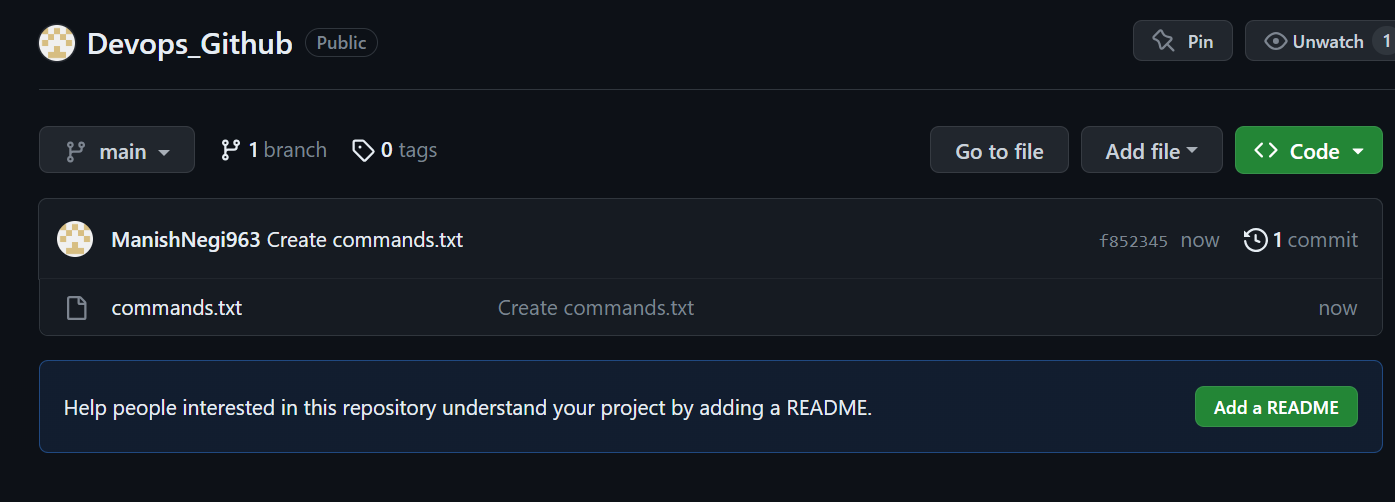
-> commands.txt has been created and committed.
-> f852345 commit id
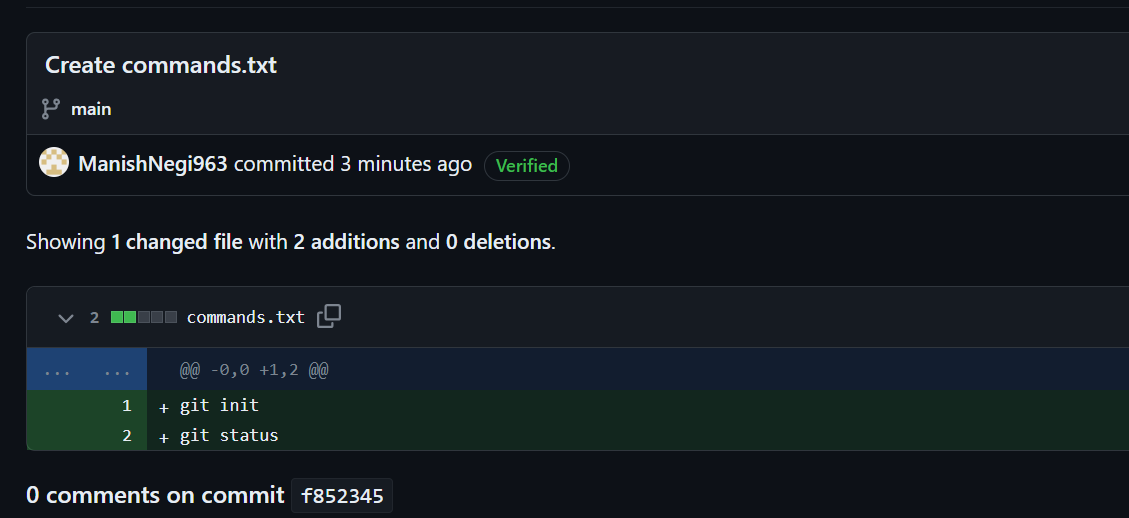
-> Click on commit id to see the changes
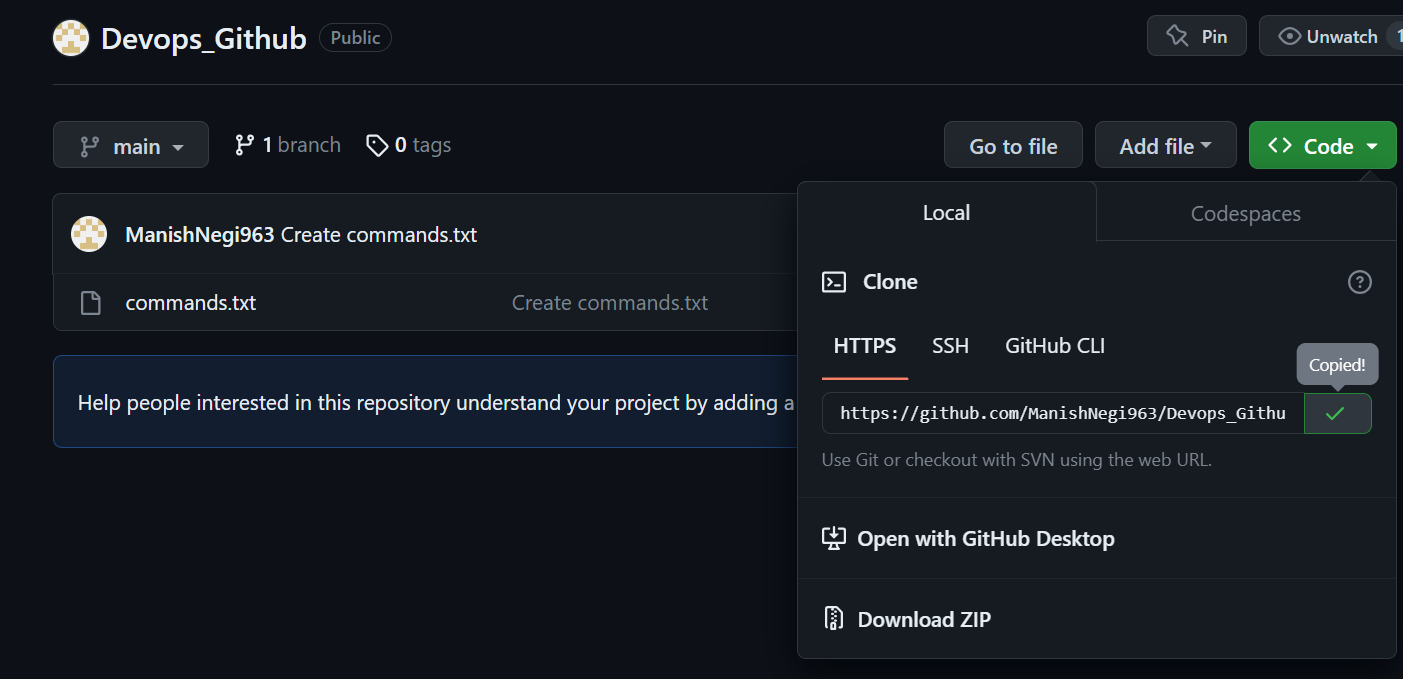
git clone url: to copy the project saved on GitHub to your local(doesn't need to use init as it is already initialised in GitHub)
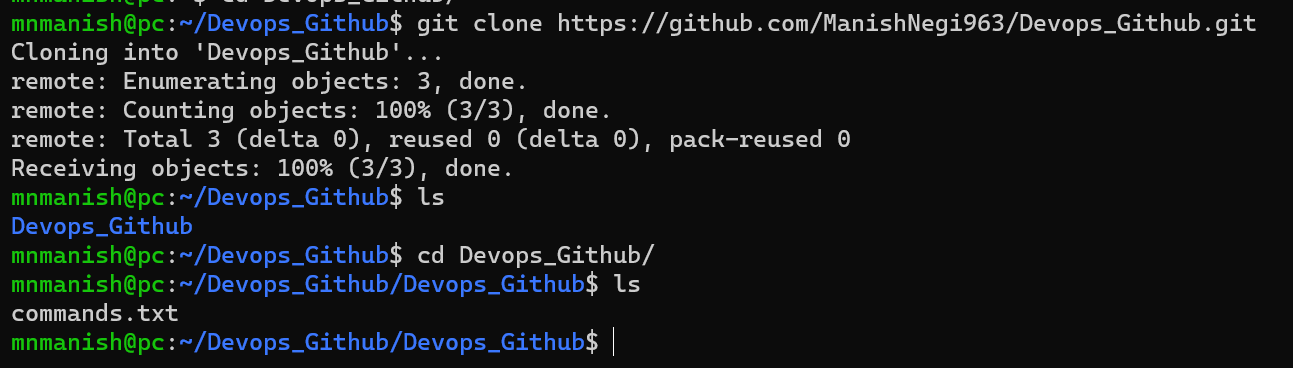
-> Devops_Github and commands.txt are now cloned into local.
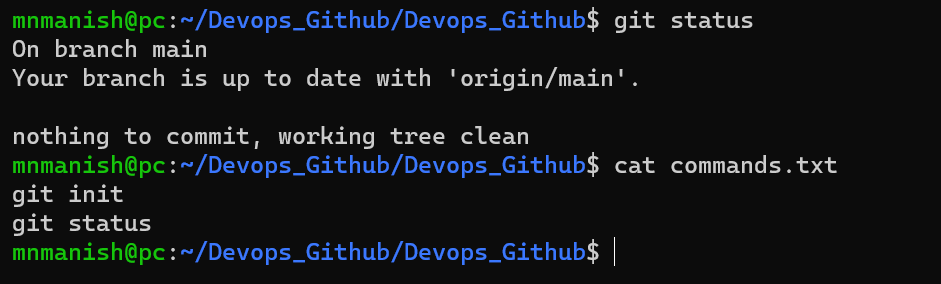
-> cat commands.txt: show the data of the file commands.txt committed in the GitHub and now cloned locally.
NOTE:
->No permission is needed while cloning the public repository locally but permission is needed while inserting into the public repository.

'origin/main': it is the origin of the remote directory.

git remote -v: to know the origin
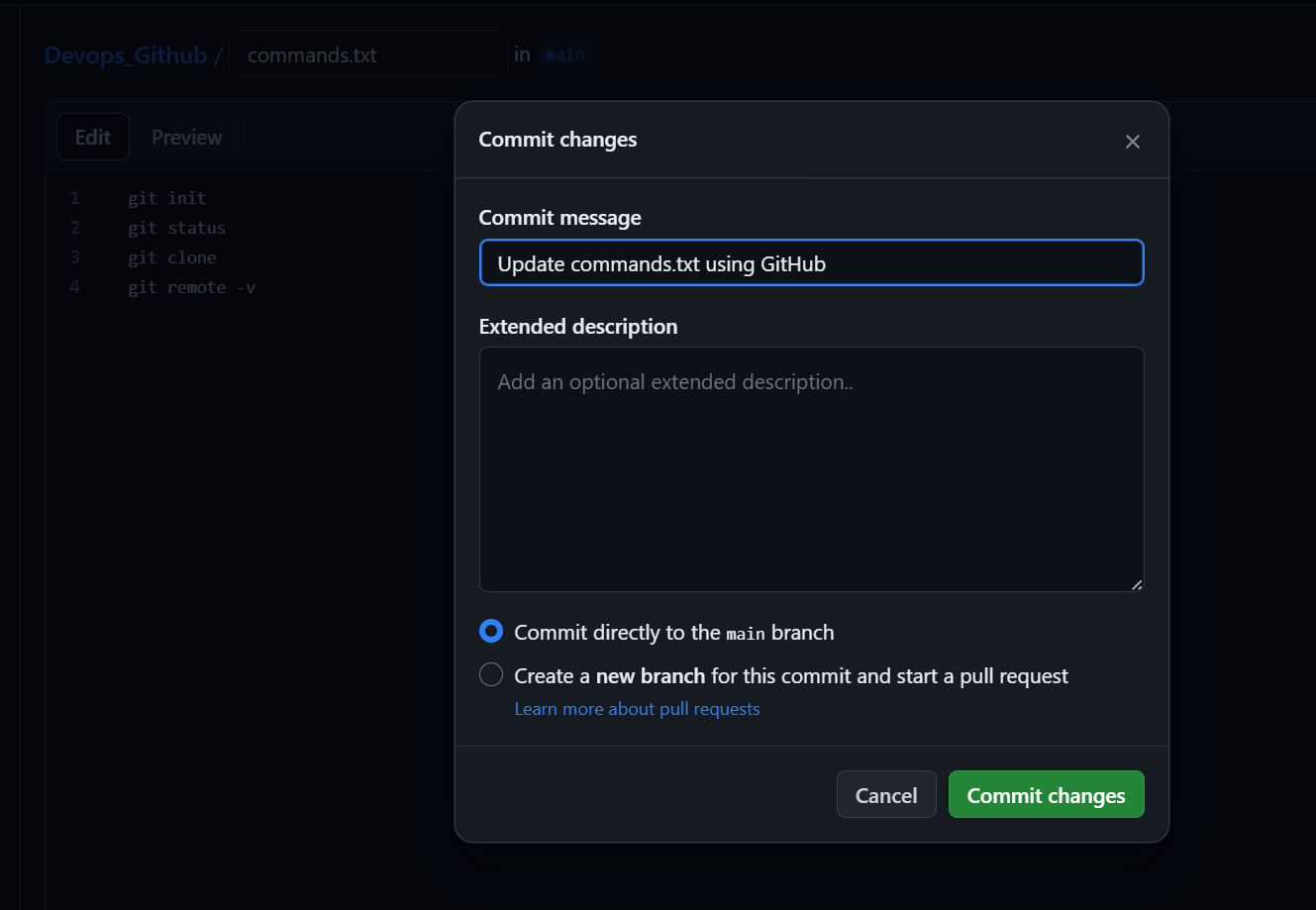
-> edit commands.txt in the GitHub with commit message Update commands.txt using GitHub.
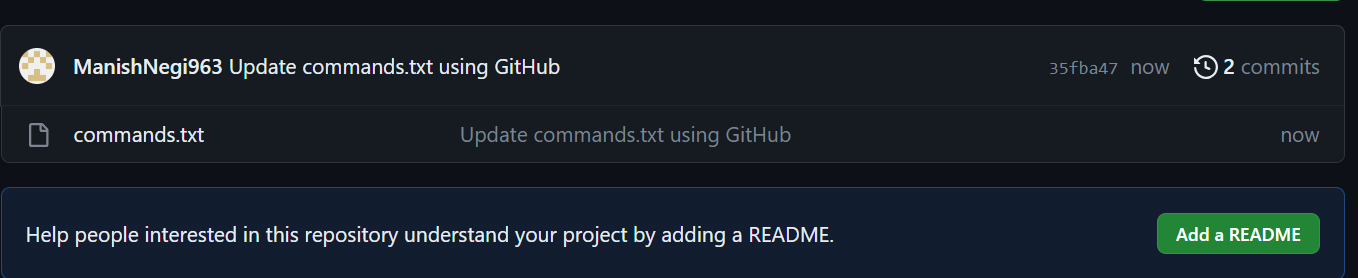
-> Now GitHub has 2 commits but local has only one commit as local and GitHub are not sycned.


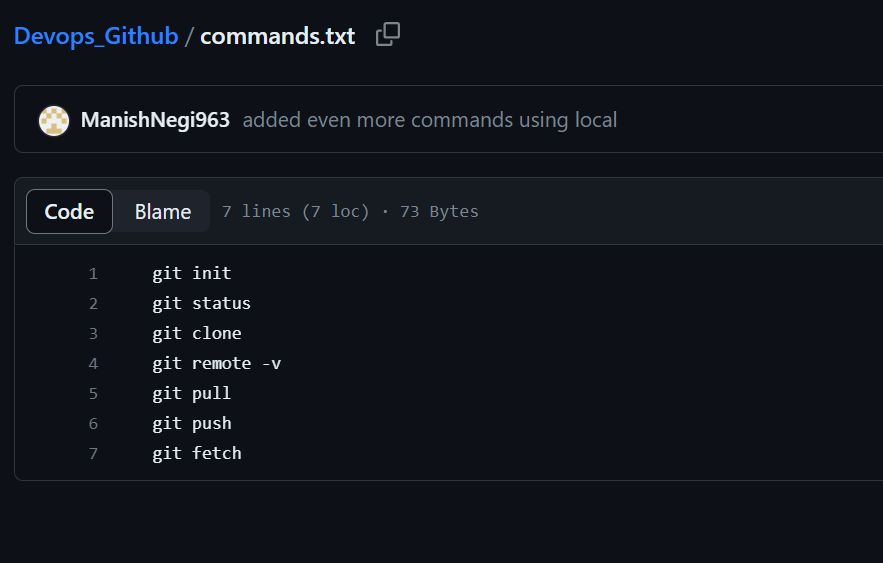
-> On local main, we have 2 commands but on GitHub main we have 4 commands.
Interview question: Difference between git push, pull, fetch
git push: to push the changes from local branch to the remote branch
git pull: to pull the changes from the remote branch to the local
git fetch: to pull all the changes of all the branch to local
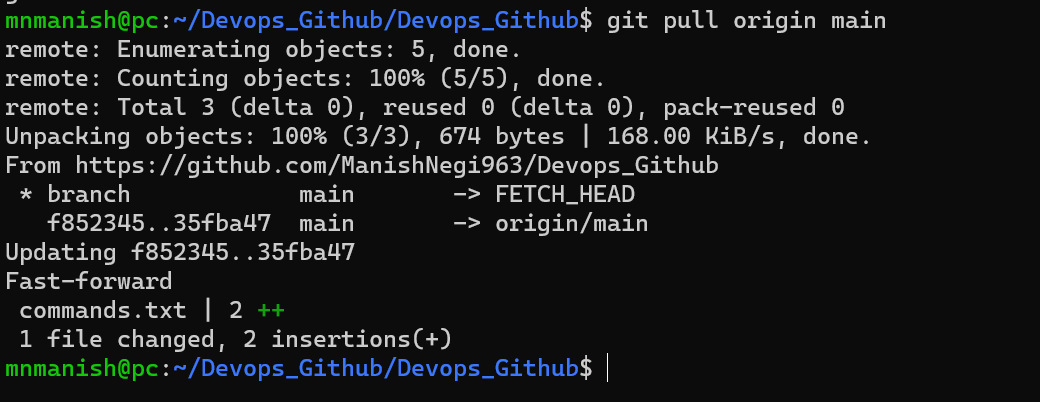
git pull origin main: to pull the data from the remote to the local
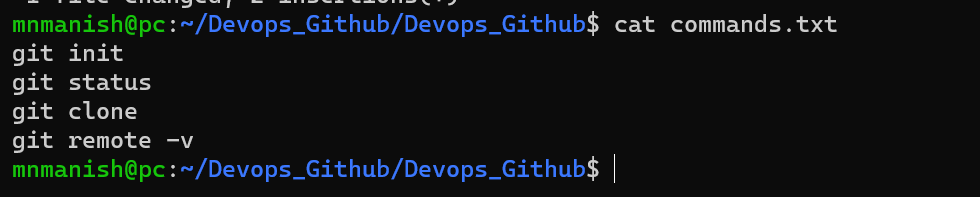
cat commands.txt: show the remote changes commands have been pulled to the local.
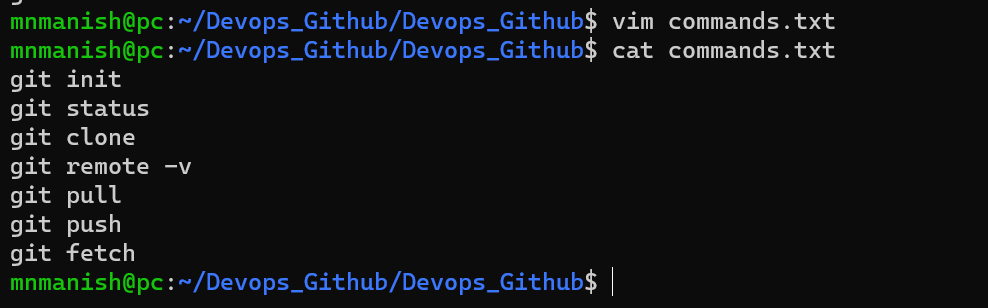
vim commands.txt: to edit the file locally.
cat commands.txt: to show the changes made to the file locally.
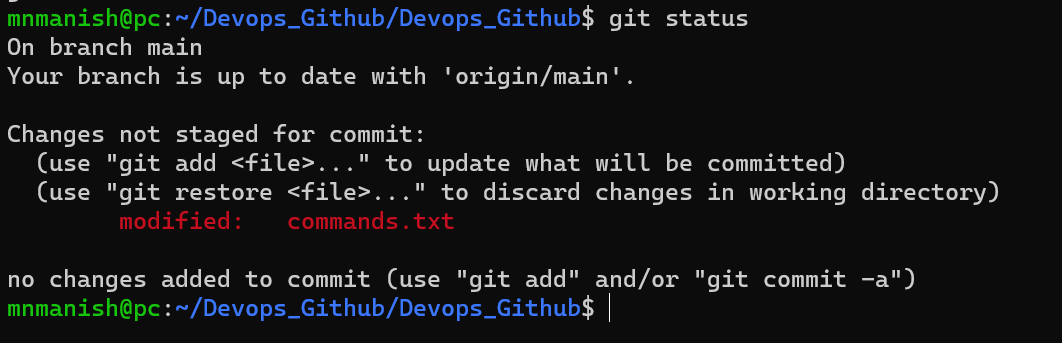
git status: to check the status of the file commands.txt
How to generate the token access and attach it with the URL (origin)?
-> Go to settings in your profile
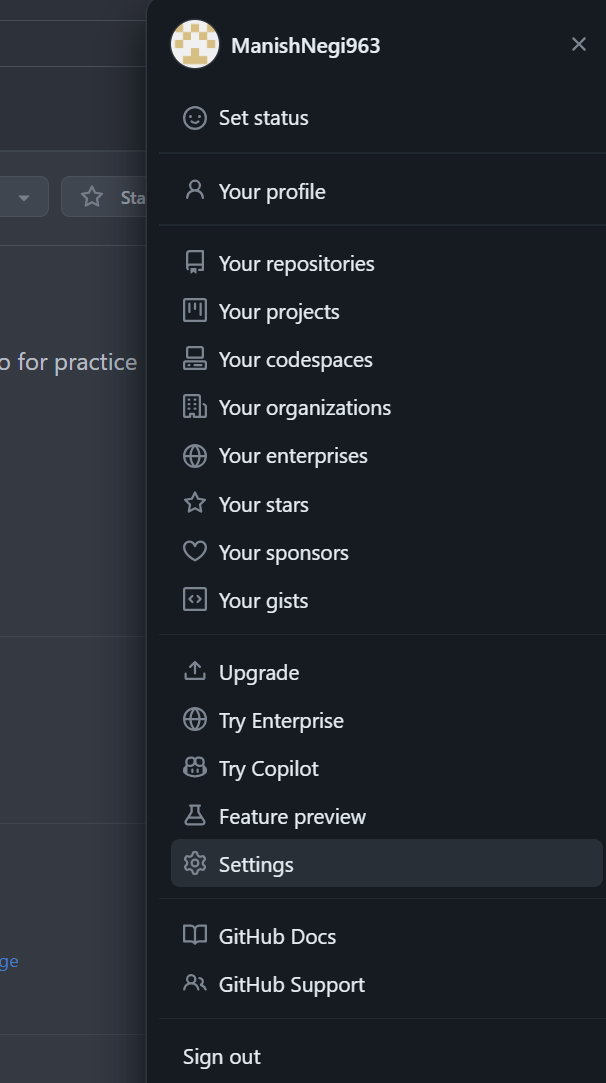
-> click on Developer settings
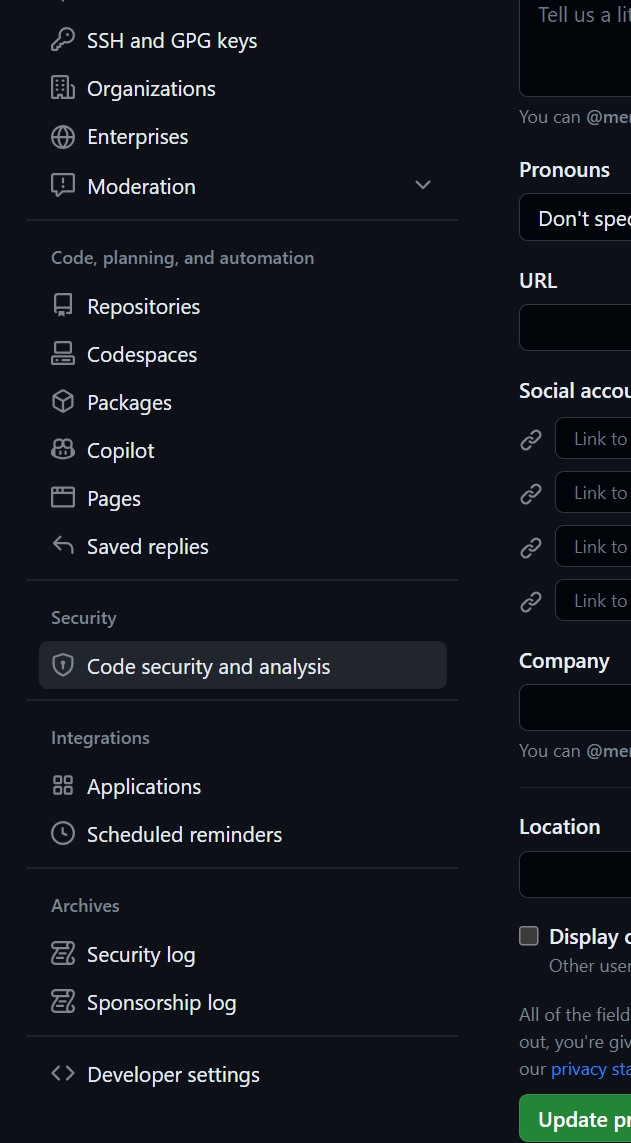
-> click on token(classic) under Personal access tokens
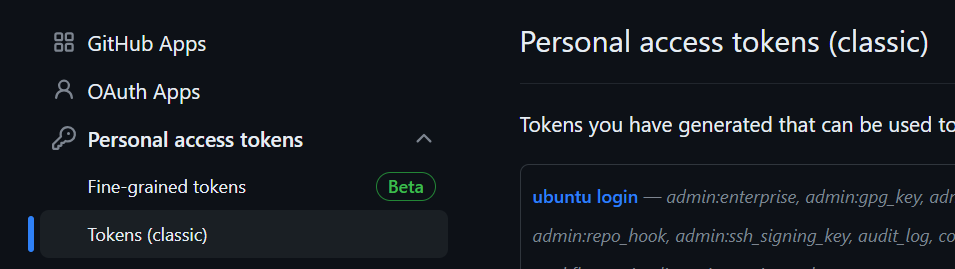
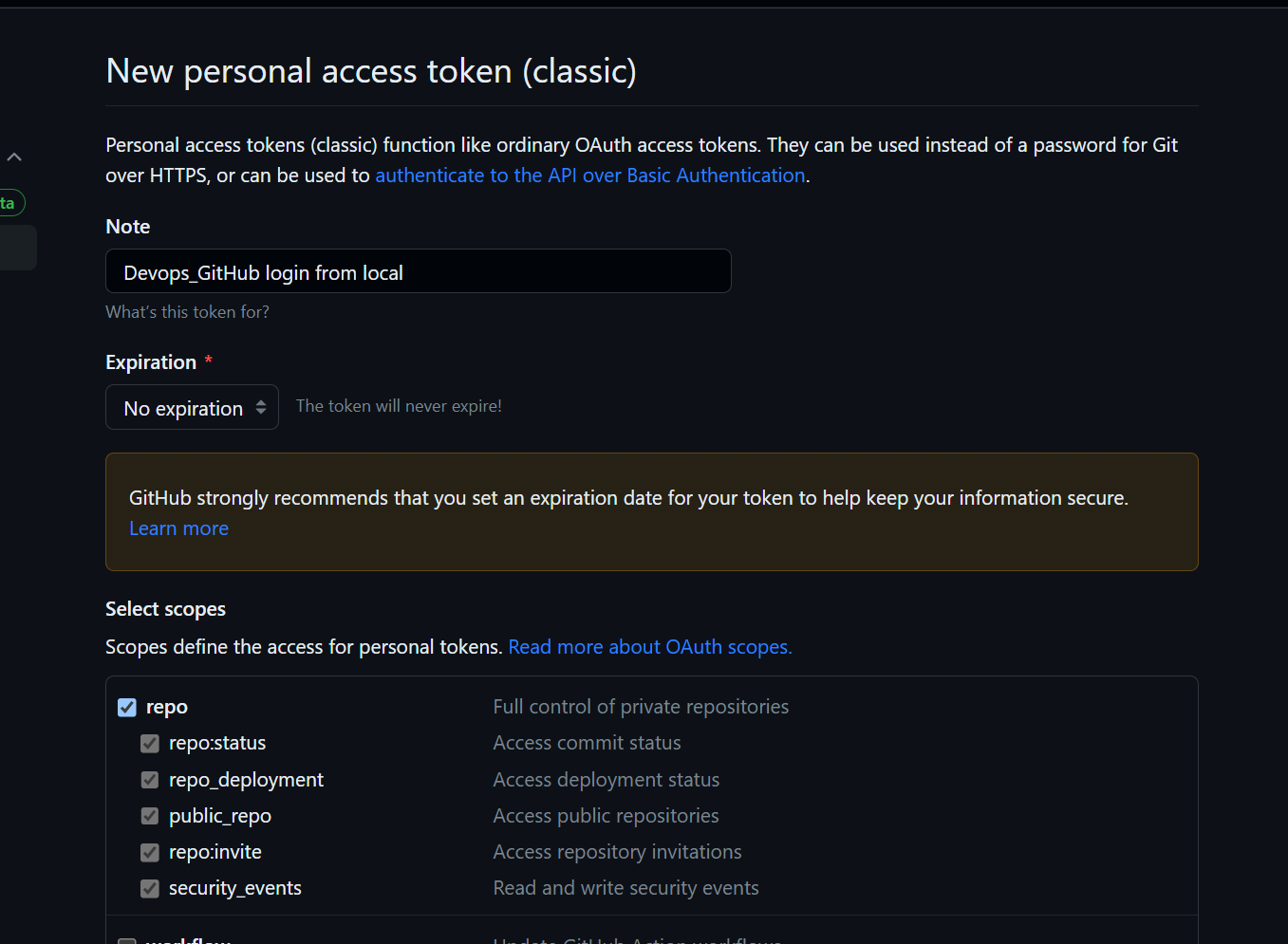
-> Generate a new personal access token(classic) and put a note for self and rights for a personal access token, expiration date of token.
-> copy token
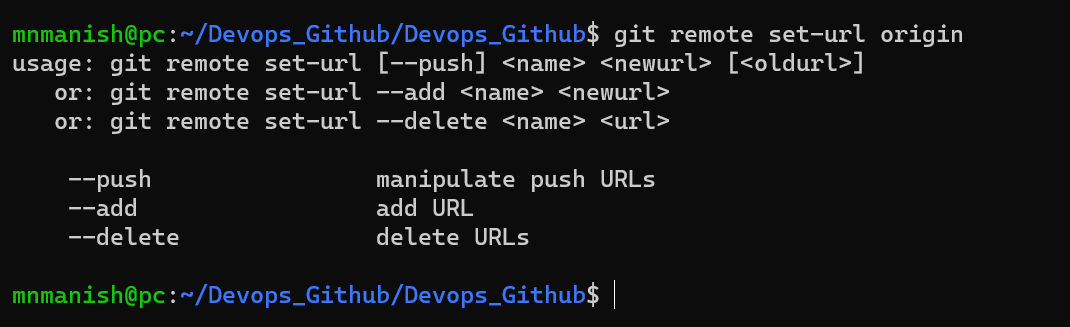
-> Check the usage on how to set access token in URL(origin)
git remote set-url --add origin <http://access-token@origin-url> : to add the access token with URL (origin)
git remote -v: to check the current origin URL(origin)

git remote set-url --delete origin old url(origin): to delete the old url (origin)

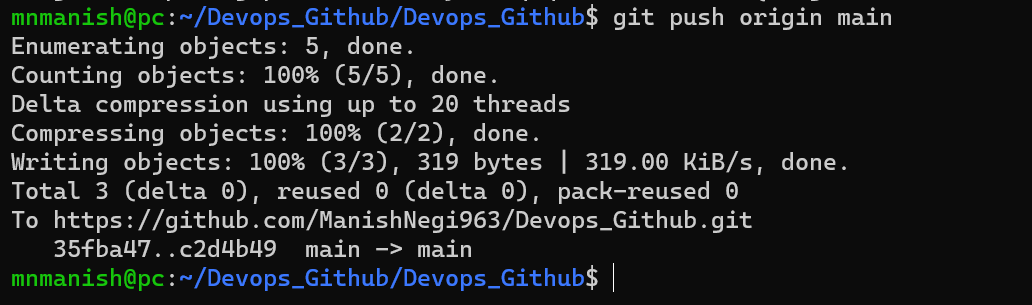
git push origin main: to push the changes from local to the remote(GitHub)